
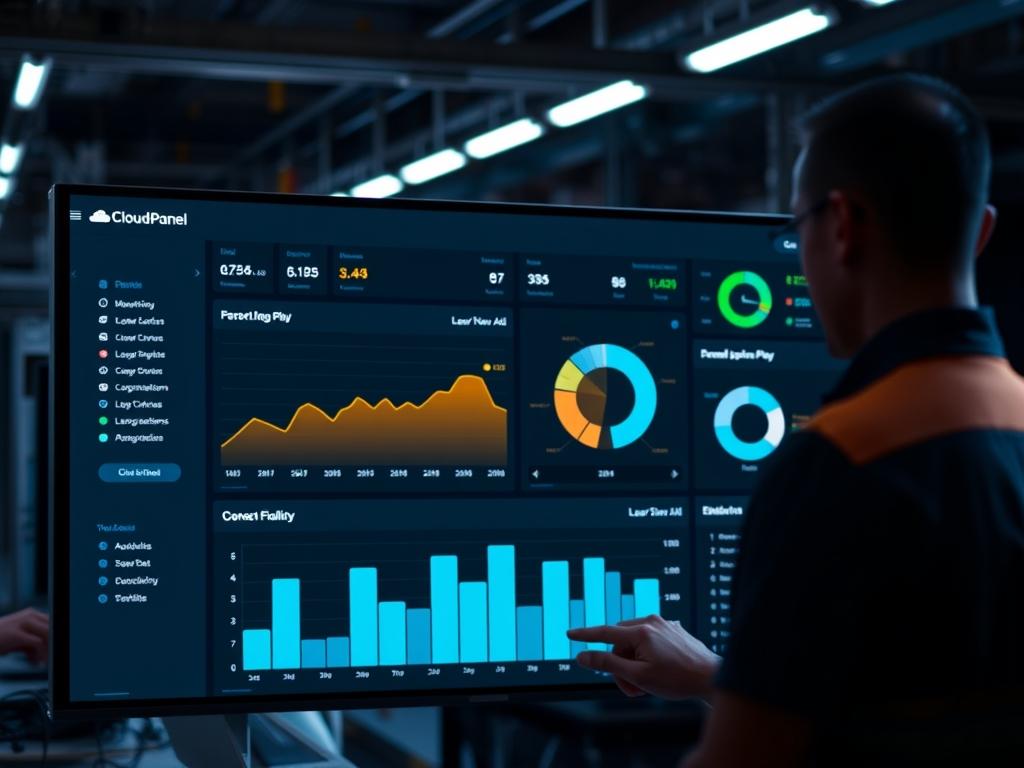
CloudPanel provides a unified interface for managing high performance PHP applications. The CloudPanel Monitoring Dashboard serves as the primary observability layer; it bridges the gap between raw kernel metrics and actionable administrative insights. In cloud infrastructure environments, failing to monitor resource consumption leads to silent failures and degraded performance. The “Problem-Solution” context involves identifying bottlenecks before they trigger OOM killers or disk exhaustion states. By leveraging specific system calls and aggregating data points into a visual interface, CloudPanel reduces the latency of administrative responses. This manual details the underlying architecture of these metrics: ensuring that every payload of data processed by the server is accounted for within the global resource pool. Efficient management requires a deep understanding of how internal services communicate with the Linux kernel to report throughput and concurrency. As infrastructure scales, these metrics become the definitive source of truth for capacity planning and hardware lifecycle management.
Technical Specifications (H3)
| Requirement | Default Port/Range | Protocol/Standard | Impact Level | Recommended Resources |
| :— | :— | :— | :— | :— |
| Operating System | N/A | Ubuntu 22.04/24.04 | 10 | x86_64 or ARM64 |
| Web Interface | 8443 | HTTPS / TLS 1.3 | 9 | 2GB RAM Minimum |
| Database Engine | 3306 | MySQL 8.0 / MariaDB | 8 | SSD / NVMe Storage |
| Metric Collector | Internal | POSIX / procfs | 7 | 1 vCPU Core |
| Network Stack | 80 / 443 | TCP / IPv4 / IPv6 | 9 | 1Gbps Uplink |
The Configuration Protocol (H3)
Environment Prerequisites:
Before initializing the CloudPanel Monitoring Dashboard, the system must meet strict architectural standards. The environment requires a clean installation of Ubuntu 22.04 or higher; ensure that no conflicting web servers like Apache or standalone Nginx instances are active outside of the CloudPanel orchestration. Root or sudo user permissions are mandatory for the execution of monitoring scripts that interact with the systemd journal. All network configurations should adhere to standard security protocols: ensuring that port 8443 is allowed through the local firewall (ufw or iptables) while blocking unauthorized ingress.
Section A: Implementation Logic:
The monitoring system utilizes a pull-based architecture where the CloudPanel service queries the /proc and /sys filesystems at regular intervals. This design ensures that metric collection is idempotent: running the monitoring tasks multiple times does not result in corrupted or duplicated data entries. The logic focuses on encapsulation; the complex state of the CPU, memory, and disk I/O is transformed into simplified data structures for the dashboard. By monitoring hardware interrupts and context switches, the system provides a granular view of processing overhead. This approach accounts for thermal-inertia in physical hardware: as temperatures rise and clock speeds throttle, the dashboard reflects the resulting drop in throughput. Furthermore, the logic incorporates network-level checks to identify packet-loss and signal-attenuation issues that might occur between the server and the upstream gateway.
Step-By-Step Execution (H3)
1. Verification of CLP-Service Integrity
Begin by validating the core background service responsible for data aggregation. Execute the command systemctl status clp-service to confirm the service is active and running.
System Note: This command queries the systemd manager to ensure the monitoring daemon has successfully registered its PID. If the service is inactive, technical overhead will increase as manual log scraping becomes necessary.
2. Validation of the Monitoring Database Schema
Access the internal database to ensure the storage tables for time-series data are accessible. Run mysql -u root -p -e “SHOW TABLES IN cloudpanel;” to list the system tables.
System Note: CloudPanel stores historical metrics within a local database instance. Any corruption here will result in missing graphs on the dashboard. This step ensures that the disk I/O sub-system is correctly handling the database payload without errors.
3. Verification of System Statistics via Top and Htop
Execute top -b -n 1 to compare real-time kernel data with the dashboard reported values. Look specifically at the load average and the percentage of CPU utilized by user processes versus kernel tasks.
System Note: This step verifies the accuracy of the CloudPanel abstraction layer. It ensures that the concurrency levels reported by the kernel match the visual output provided to the administrator.
4. Analysis of Disk I/O and Mount Point Health
Use the command df -h followed by iostat -x 1 5 to observe disk utilization and throughput.
System Note: Monitoring disk state is critical for preventing thermal-inertia issues in high-density SSD arrays. High I/O wait times directly contribute to application latency and can eventually lead to file system read-only locks.
5. Log Tailoring for Real-Time Debugging
Execute tail -f /var/log/cloudpanel/clp-service.log to watch the monitoring service process incoming metrics in real-time.
System Note: Tailing the log file provides a direct view into the encapsulation process. It reveals if any specific metric collector is failing due to permission issues or missing kernel modules.
Section B: Dependency Fault-Lines:
Installation failures or metric gaps often stem from library conflicts or restricted kernel access. If the clp-service fails to start, the primary bottleneck is usually the absence of the php-cli or corrupted permissions on the /tmp directory. Mechanical bottlenecks like disk saturation will prevent the monitoring system from writing new data points: leading to “flatline” graphs. Library conflicts can occur if third-party repositories have replaced core system packages, breaking the expected API signatures used for metric collection.
THE TROUBLESHOOTING MATRIX (H3)
Section C: Logs & Debugging:
When the CloudPanel Monitoring Dashboard fails to display data, administrators must follow a specific diagnostic path. Start with the CloudPanel main log located at /var/log/cloudpanel/clp-service.log. If the log reports “Permission Denied,” check the file ownership using ls -l and correct it using chown. For errors related to database connectivity, check /var/log/mysql/error.log; if the database is under high load, it may reject the monitoring service’s connection attempts, causing gaps in observability.
Visual cues on the dashboard, such as red status indicators, often correlate with specific exit codes in the journal. Use journalctl -u clp-service -e to jump to the most recent errors. If network metrics show high packet-loss, verify the physical or virtual network interface using ethtool eth0. For cloud-based setups, ensure that signal-attenuation or bandwidth throttling at the hypervisor level isn’t impacting the reporting of the server’s telemetry.
OPTIMIZATION & HARDENING (H3)
Performance Tuning:
To maximize concurrency and throughput, administrators should tune the PHP-FPM pool settings used by the dashboard. Adjust the pm.max_children and pm.start_servers values in the configuration file located at /etc/php/8.x/fpm/pool.d/www.conf. This ensures that the monitoring interface remains responsive even during high traffic surges. To reduce overhead, increase the interval of metric collection in the settings if exact real-time data is not required for daily operations. This reduction in polling frequency lowers the CPU cycles spent on observation, freeing up resources for actual application logic.
Security Hardening:
Tighten permissions by ensuring that the monitoring logs are only readable by the clp-service user. Use chmod 600 on sensitive configuration files. Implement firewall rules to restrict access to port 8443 to specific administrative IP addresses; this prevents unauthorized users from analyzing your server’s resource patterns to find vulnerabilities. Disabling unused kernel modules also reduces the attack surface and minimizes the potential for signal-attenuation or interference in the system’s interrupt handling.
Scaling Logic:
As the server load increases, the monitoring system must be able to handle greater volumes of data without crashing. Offloading the database to a separate instance can significantly reduce local disk I/O and thermal-inertia. For high-traffic setups, consider implementing a centralized logging server (like ELK or Graylog) and configuring CloudPanel to forward its logs. This ensures that even if the local server experiences a total hardware failure or extreme packet-loss, the historical metrics remain available for post-mortem analysis.
THE ADMIN DESK (H3)
How do I reset the monitoring data?
To clear the historical graphs, you must truncate the monitoring tables in the database. Log into MySQL and run TRUNCATE TABLE monitoring_data;. This is an idempotent action that preserves the table structure while purging all stored records.
Why are my CPU graphs showing 0%?
This usually indicates a failure in the clp-service. Verify that the service is running with systemctl status clp-service. If it is running, check the /proc filesystem permissions to ensure the service can read system statistics.
Can I monitor custom ports through the dashboard?
The CloudPanel Monitoring Dashboard focuses on core system metrics. For custom application ports, you should implement external probes. However, you can see the impact of these ports on the global throughput and latency metrics via the dashboard.
What causes high I/O Wait in the dashboard?
High I/O wait is typically caused by slow disk hardware or a backup process consuming all available throughput. Check for high-concurrency database queries or large file transfers that might be saturating the disk sub-system and increasing latency.
How do I change the monitoring interval?
The monitoring interval is hardcoded into the service logic to ensure data consistency. To change it, you would need to modify the service’s execution timer within the systemd configuration, though this is not recommended as it impacts data aggregation accuracy.

