
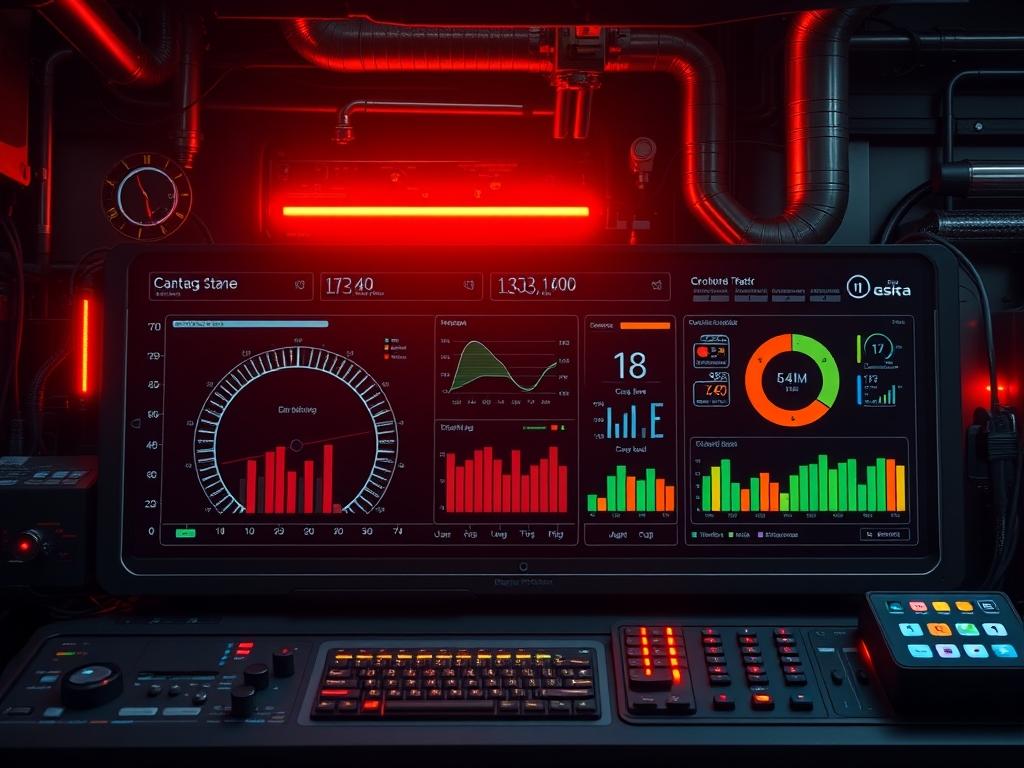
Professional Grafana Dashboard Design facilitates the critical synthesis of high-cardinality telemetry into actionable intelligence. Within the modern technical stack, whether managing a high-frequency trading environment or a municipal water treatment facility, the dashboard serves as the authoritative interface between raw data and operational decision making. Infrastructure architects face a persistent challenge: data fragmentation. Disparate systems generate massive volumes of time-series data that, without proper encapsulation and visualization, become noise. This manual addresses the requirement for a unified observability layer that mitigates high latency and prevents signal-attenuation in complex reporting chains. By centralizing metrics from cloud instances, network switches, and physical sensors, architects can identify performance bottlenecks such as high packet-loss or excessive thermal-inertia within hardware racks. The goal is to move beyond simple plotting to an idempotent state of monitoring where dashboard configurations are reproducible, scalable, and resilient to underlying service disruptions. This guide provides the technical blueprint for achieving that standard.
TECHNICAL SPECIFICATIONS
| Requirement | Default Port/Range | Protocol/Standard | Impact Level (1-10) | Recommended Resources |
| :— | :— | :— | :— | :— |
| Grafana Core Service | 3000 | TCP/HTTP/HTTPS | 10 | 2 vCPU / 4GB RAM |
| Prometheus Data Source | 9090 | HTTP/PromQL | 9 | 4 vCPU / 8GB+ RAM |
| Database Backend | 5432 / 3306 | SQL (PostgreSQL/MySQL) | 7 | 2 vCPU / 4GB RAM |
| SNMP Exporter | 9116 | UDP/SNMP | 6 | 1 vCPU / 1GB RAM |
| Node Exporter | 9100 | TCP/HTTP | 8 | 0.5 vCPU / 512MB RAM |
| SSL/TLS Encryption | 443 | OpenSSL/TLS 1.3 | 9 | Negligible CPU overhead |
THE CONFIGURATION PROTOCOL
Environment Prerequisites:
Successful deployment requires a Linux-based host (Ubuntu 22.04 LTS or RHEL 9 recommended) with Docker v24.0.0+ and Docker Compose v2.20.0+. All network interfaces must respect standard IEEE 802.3 networking protocols. User permissions must be scoped to the sudo or wheel group for service manipulation. Ensure that the system time is synchronized via Chrony or NTP to prevent time-skew errors during query execution; asynchronous clocks will lead to inaccurate latency reporting and broken time-series graphs.
Section A: Implementation Logic:
The theoretical foundation of professional dashboard design rests on the principle of minimal cognitive load. We implement a layered logic: Data Acquisition, Time-Series Storage, and Visualization. The visualization layer does not merely display data; it acts as a filter for system throughput and concurrency problems. We use variables to create dynamic dashboards, ensuring the setup is idempotent across multiple environments (Dev, Staging, Prod). This design utilizes a “Push-Pull” hybrid model where edge metrics are scraped by a collector and then queried by Grafana using an optimized payload structure to minimize network overhead.
Step-By-Step Execution
Step 1: Initialize the Persistence Layer
Execute mkdir -p /opt/grafana/data && chown -R 472:472 /opt/grafana/data. This creates the persistent storage directory for the internal SQLite or PostgreSQL database.
System Note: Using chown -R 472 aligns the directory permissions with the default Grafana container user ID; failing to do this causes a permission denied error at the kernel level, preventing the service from locking its internal database.
Step 2: Configure the Network Bridge
Run docker network create –driver bridge monitoring_network. This isolated virtual network manages internal traffic between the dashboard and data sources.
System Note: Creating a dedicated bridge network reduces packet-loss by isolating monitoring traffic from host-process traffic, effectively managing the containerized network stack via iptables.
Step 3: Deploy the Grafana Binary
Execute docker run -d –name=grafana -p 3000:3000 –network=monitoring_network -v /opt/grafana/data:/var/lib/grafana grafana/grafana-enterprise:latest.
System Note: This command initializes the Grafana engine. The systemctl equivalent on a bare-metal install would involve systemctl enable –now grafana-server, which loads the binary into the system memory resident set.
Step 4: Define Data Source Integration
Access the UI via http://localhost:3000 and navigate to Configuration > Data Sources. Map the Prometheus endpoint to http://prometheus:9090.
System Note: This establishes the TCP handshake between the visualization layer and the storage engine. It relies on internal DNS resolution within the Docker bridge to translate the container name into an IP address.
Step 5: Implement Row-Level Variables
Inside the dashboard settings, define a new variable $node with the query label_values(node_uname_info, instance).
System Note: Variables allow for high concurrency in dashboard usage. Instead of hard-coding values, the dashboard dynamically updates the query payload based on user selection, reducing the processing overhead on the storage backend.
Section B: Dependency Fault-Lines:
Software implementation frequently encounters library conflicts or hardware bottlenecks. A common failure point is the glibc version mismatch when running Grafana on legacy kernels. If the host lacks sufficient entropy, SSL/TLS handshakes may experience significant latency, delaying dashboard renders. Furthermore, high signal-attenuation in physical sensor lines (e.g., Modbus over long distances) can lead to fragmented data packets that Prometheus cannot ingest, resulting in “No Data” warnings on the Grafana interface. Always verify the integrity of the physical layer before troubleshooting the application layer.
THE TROUBLESHOOTING MATRIX
Section C: Logs & Debugging:
When the dashboard fails to update, your primary diagnostic tool is the application log located at /var/log/grafana/grafana.log (or via docker logs grafana). Look for the following fault patterns:
1. DB Deadlock Error: Indicates high database concurrency issues. Solve by migrating from SQLite to a dedicated PostgreSQL instance.
2. Context Deadline Exceeded: This is a latency signature. It means the backend data source took too long to return the payload. Increase the timeout settings in grafana.ini under the [dataproxy] section.
3. Socket Hang Up: Often caused by an intermediate firewall or proxy (like Nginx) terminating the connection before the large data payload is fully transferred.
Visual cues are also vital. If a graph shows “vertical drops” to zero followed by immediate recovery, this suggests intermittent packet-loss or a crashing exporter service on the target node. Use tcpdump -i eth0 port 9090 to verify if the scraped metrics are reaching the host.
OPTIMIZATION & HARDENING
Performance Tuning:
To maximize throughput, enable the “Min Interval” setting on high-frequency panels to match the scrape interval of your data source. This prevents “over-sampling” where Grafana requests more data points than exist, wasting CPU cycles. For systems with high thermal-inertia (like large cooling units), use long-term averaging functions like rate() or increase() over 15-minute windows to smooth out noise. Ensure that the GOMAXPROCS environment variable is tuned to the number of available CPU cores to improve concurrency handling during complex panel renders.
Security Hardening:
Professional dashboards must be locked down to prevent unauthorized infrastructure insights. Edit the /etc/grafana/grafana.ini file to set disable_gravatar = true and allow_embedding = false. Utilize iptables or nftables to restrict access to port 3000 to specific administrative IP ranges. For production environments, always wrap the connection in TLS 1.3 using a reverse proxy; this adds a layer of encapsulation that protects the data payload from interception and mitigates man-in-the-middle attacks.
Scaling Logic:
As the number of monitored assets grows, a single Grafana instance may struggle. Move to a High Availability (HA) configuration by deploying multiple Grafana pods behind a Load Balancer (e.g., HAProxy or F5). Use a shared external database (PostgreSQL) for dashboard storage and a shared session provider like Redis. This ensures that the system remains idempotent; any user can connect to any Grafana node and see the exact same state without synchronization delay.
THE ADMIN DESK
1. How do I fix “Template Variable Error”?
Check the variable query syntax. Ensure the data source is selected correctly in the variable settings. If the query returns an empty set, the variable will fail to populate, breaking all dependent panels.
2. Why is my dashboard slow to load?
High latency is usually caused by excessive data points. Use the avg_over_time or max_over_time functions in your PromQL queries to reduce the payload size sent from the server to the browser.
3. Can I recover a deleted dashboard?
Grafana does not have a trash bin by default. However, if you have configured a persistent volume, you can restore the grafana.db file from a previous filesystem snapshot or backup.
4. How do I monitor Grafana itself?
Grafana exposes its own metrics at the /metrics endpoint. Add this endpoint to your Prometheus configuration to monitor query latency, active sessions, and memory usage within your own dashboard.
5. What is the impact of high “cardinality”?
High cardinality (too many unique labels) causes the storage engine to bloat. This increases the overhead of every query, leading to slower dashboard refreshes and potential system instability. Keep labels concise.

