
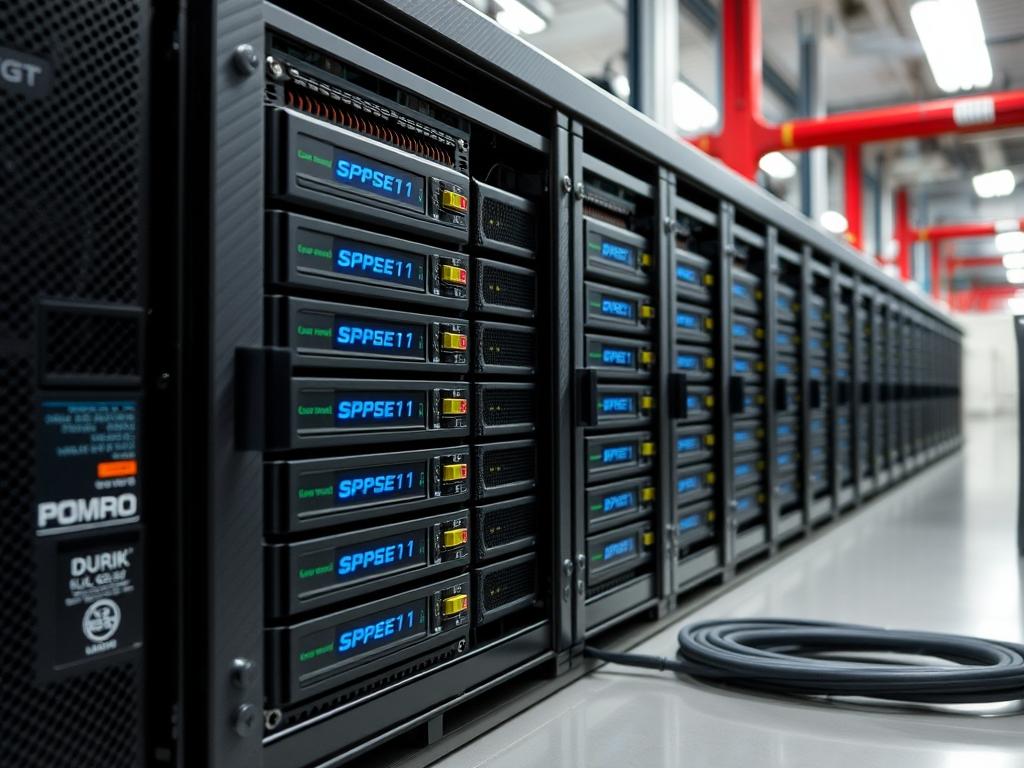
RAID 1 Configuration represents the fundamental baseline for data integrity within high-availability infrastructures. In the context of critical sectors such as energy grid management or telecommunications, where latency and system uptime are non-negotiable, software-defined mirroring provides a robust safeguard against hardware obsolescence and sudden disk failure. This configuration replicates every bit of data across two or more physical disks; thus, it ensures that the system maintains operational continuity even if a primary storage unit suffers a catastrophic electrical or mechanical breakdown. Unlike RAID 5 or 6, RAID 1 does not rely on complex parity calculations; instead, it utilizes a simple duplication logic that minimizes CPU overhead and reduces the risk of data corruption during write operations. The primary objective is to eliminate the single point of failure at the storage layer: transitioning from a volatile single-disk state to an idempotent mirrored environment. By implementing this protocol, architects can ensure that the data payload is always available; provided at least one disk in the array remains functional.
Technical Specifications
| Requirement | Default Range/Value | Protocol/Standard | Impact Level (1-10) | Recommended Resources |
| :— | :— | :— | :— | :— |
| Disk Quantity | Exactly 2 (per array) | SATA III / SAS / NVMe | 10 | Balanced RPM or Solid State |
| Controller | Software (mdadm) | POSIX / Linux Kernel | 8 | 1GHz CPU / 512MB RAM |
| Sync Throughput | 100 – 600 MB/s | IEEE 802.3 related BUS | 7 | High-speed SATA Cables |
| Availability | 99.999% Expected | RAID Level 1 | 9 | Tier 4 Data Center Specs |
| Sector Size | 512e or 4Kn | Advanced Format | 6 | Minimum 1TB redundant pair |
Environment Prerequisites
Before initiating the RAID 1 Configuration, ensure the host system is running a modern Linux distribution: such as Ubuntu 22.04 LTS, RHEL 9, or Debian 12. The underlying kernel must support the Multiple Device (MD) driver module. Ensure that both physical disks, identified as SATA or NVMe block devices, are identical in capacity to prevent partition misalignment. User permissions must be elevated: full root or sudo privileges are mandatory for block-level modifications. Install the necessary management utility via apt install mdadm or dnf install mdadm. Verify that the disks do not contain existing file systems that might conflict with the new array metadata.
Section A: Implementation Logic
The engineering design of RAID 1 revolves around the concept of synchronous encapsulation. When the operating system issues a “write” command, the kernel MD driver intercepts the payload and splits the stream. It directs the identical data blocks to Disk A and Disk B simultaneously. This process introduces a negligible increment in write latency due to the bus overhead; however, it significantly enhances read throughput because the controller can pull alternating blocks from both disks in a round-robin fashion. The logic is designed to be self-healing: if one disk reports a block-level error, the system transparently reroutes the request to the healthy mirror. This setup is particularly effective in environments with high concurrency where data availability is more critical than raw storage capacity.
Step 1: Physical Disk Identification
lsblk -o NAME,SIZE,FSTYPE,TYPE,MOUNTPOINT
System Note: This command queries the /sys/class/block directory tree to enumerate all physical volumes currently recognized by the host; ensuring that the target disks for the RAID 1 Configuration are unmounted and ready for initialization.
Step 2: Wiping Existing Metadata
mdadm –zero-superblock /dev/sdb /dev/sdc
System Note: This action targets the end-of-disk and start-of-disk sectors to erase any residual RAID signatures or filesystem headers; preventing the kernel from attempting to auto-assemble a corrupted or legacy array during the boot process.
Step 3: Initializing the Mirrored Array
mdadm –create –verbose /dev/md0 –level=1 –raid-devices=2 /dev/sdb /dev/sdc
System Note: This command invokes the ioctl system call to register a new virtual block device at /dev/md0. The kernel begins an immediate background resynchronization process; bit-copying the master disk to the mirror disk while maintaining the device as available for formatted use.
Step 4: Monitoring Synchronization Progress
cat /proc/mdstat
System Note: This inspects the real-time status of the MD driver; providing a visualization of the sync percentage and the estimated time to completion. High thermal-inertia in spinning disks during this phase may require monitoring of the sensors output to prevent overheating.
Step 5: Filesystem Deployment
mkfs.ext4 -F /dev/md0
System Note: This command constructs the inode table and journal for the ext4 filesystem on the virtual device. By formatting the virtual device rather than the physical disks, the filesystem remains abstracted from the underlying hardware layer; ensuring seamless disk replacement.
Step 6: Capturing the Array Configuration
mdadm –detail –scan | sudo tee -a /etc/mdadm/mdadm.conf
System Note: This appends the unique UUID of the array to the persistent configuration file. It is a critical step for ensure that the initramfs routine can correctly assemble the array upon system reboot before the root partition is mounted.
Step 7: Updating the Initial RAM Filesystem
update-initramfs -u
System Note: This rebuilds the temporary root file system used during Linux startup. It embeds the new RAID 1 Configuration parameters into the boot image; preventing “Device Not Found” errors during the early stages of kernel initialization.
Section B: Dependency Fault-Lines
The most common failure in RAID 1 deployment is capacity mismatch. If Disk B is even one sector smaller than Disk A, the array creation will fail. Another bottleneck is “Write-Hole” exposure: a situation where a power loss during a write operation leaves the two disks out of sync. To mitigate this, enterprise-grade systems often use a “Bitmap” which tracks dirty blocks. Library conflicts rarely occur with mdadm; however, firmware discrepancies between two different disk manufacturers can lead to inconsistent latency spikes. Always ensure that the physical SATA ports are not configured in “IDE Mode” within the BIOS: “AHCI” or “NVMe” modes must be active to support the necessary throughput.
Section C: Logs & Debugging
When the array enters a “Degraded” state, immediate intervention is required. The first diagnostic step is checking the system journal via journalctl -u mdadm or inspecting /var/log/syslog. Look for error strings such as “DRDY ERR” or “UNC” (Uncorrectable Error). These codes indicate that the physical media has developed bad sectors.
To view the specific health of the array, use the command mdadm –detail /dev/md0. Examine the “State” field: if it indicates “clean, degraded,” one disk has been kicked out of the array. If the failure is a software glitch, you can re-add the disk using mdadm –manage /dev/md0 –add /dev/sdb. If the failure is hardware-related, the status LEDs on the drive tray or the output of smartctl -a /dev/sdb will confirm electrical death. Verification of the signal path is also necessary: check for signal-attenuation by replacing the data cable and checking for “CRC Error” counts in the SMART logs.
Optimization & Hardening
Performance tuning for RAID 1 involves adjusting the kernel’s read-ahead buffer. By executing blockdev –setra 4096 /dev/md0, you increase the amount of data the kernel pre-caches during sequential reads; significantly improving file transfer throughput. To manage thermal-efficiency, ensure that the disks are physically spaced to allow airflow; as simultaneous synchronization generates significant heat.
Security hardening is achieved by layering LUKS encryption on top of the RAID device. Instead of formatting /dev/md0 directly, use cryptsetup luksFormat /dev/md0. This ensures that even if a physical disk is stolen from the data center, the mirrored data remains inaccessible without the master key. For scaling, RAID 1 can be nested into RAID 10 (Mirroring + Striping) if future expansion requires both high redundancy and extreme speed. This maintenance should be performed using idempotent scripts to ensure consistency across multiple server nodes.
The Admin Desk: Quick-Fix FAQ
How do I replace a failed drive in the array?
First, mark the drive as failed: mdadm /dev/md0 –fail /dev/sdb. Then remove it: mdadm /dev/md0 –remove /dev/sdb. Physical swap the drive; then add the new one: mdadm /dev/md0 –add /dev/sdc. The system handles the resync automatically.
Why is my RAID 1 resyncing so slowly?
The kernel limits resync speed to preserve system responsiveness. You can increase the ceiling by writing a higher value to the system limit: echo 500000 > /proc/sys/dev/raid/speed_limit_max. This prioritizes reconstruction over application throughput.
Can I grow a RAID 1 array with more disks?
Yes; RAID 1 is not limited to two disks. You can increase the “raid-devices” count to three or more for triple-mirroring. Use mdadm –grow /dev/md0 –raid-devices=3 –add /dev/sdd to enhance redundancy without downtime.
Is RAID 1 a replacement for regular backups?
No. RAID 1 protects against hardware failure; not data corruption or accidental deletion. If a file is deleted, it is deleted from both mirrors simultaneously. Always maintain an off-site, air-gapped backup for true disaster recovery.
What happens if the RAID controller hardware fails?
Since this is a software RAID 1 Configuration, there is no proprietary hardware controller. You can move the disks to any Linux-compatible machine; and the mdadm utility will recognize and assemble the array using the existing metadata.

